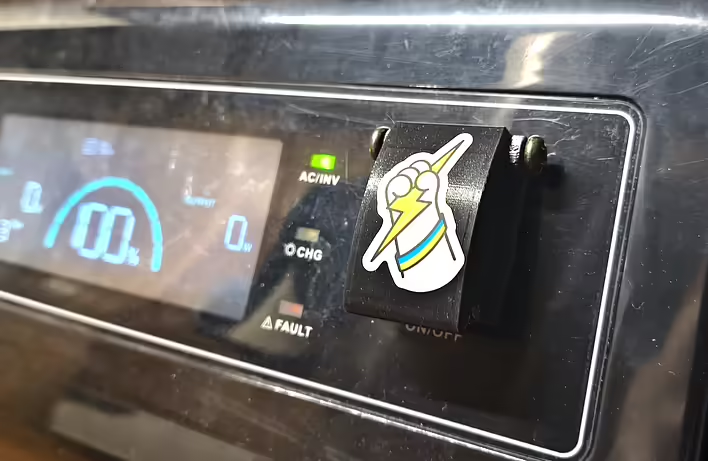
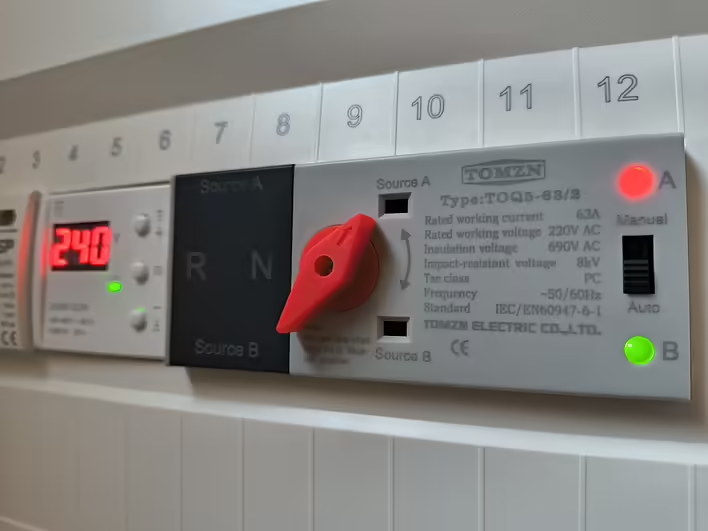
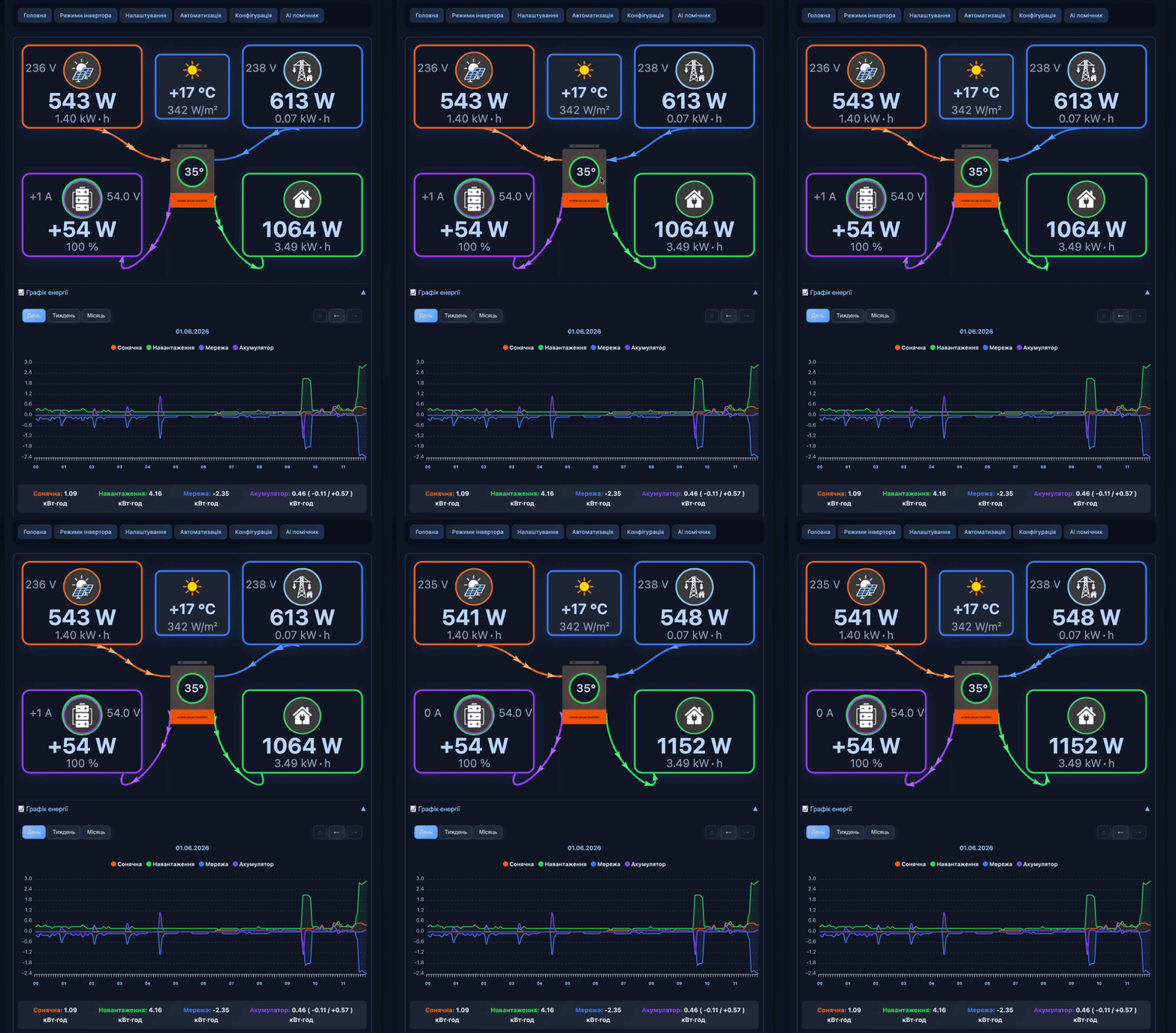
Connected solcloudy to KS5200PS and the next day I saw that the electricity from the grid (Grid) was being counted in the reverse direction. I immediately reached out in the TG chat for help. I received a response from the AI assistant (remind you that under the hood we have PV1800 or something like PV18-5248PRO):
Hello! I understand your task. When you have an inverter of the Must brand and need to change the sign for the Grid Power parameter so that the data displays correctly, this is done by editing the configuration (on the page /inv_cofig).
In the updates of the SolCloudy system, the old setting val_is_minus has been replaced with a much more flexible value transformation tool — multipli_to.
Here is a step-by-step guide on how to make this "reverse" for the Must protocol:
Step 1. Open the configuration editor
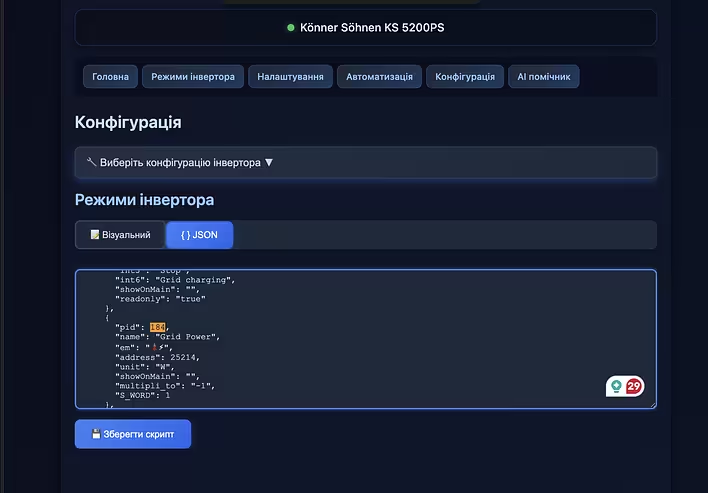
Go to your logger's menu on the Inverter Config page (address /inv_cofig).
Switch to JSON mode (by clicking the toggle button Visual/JSON) to see the text code of the settings.
Step 2. Find the grid power parameter
In the list of parameters, find the one that corresponds to Grid Power. It usually has pid": 184 or you can recognize it by the name "name": "Grid Power" and the emoji 🗼⚡.
Step 3. Add the sign transformation
To invert (flip) the value from positive to negative or vice versa, you need to add the line "multipli_to": "-1".
Here is an example of how this block should look in your JSON file:
(Note: The register number "address" and the divisor "devided" in your Must profile may differ — leave those that are already specified, just add the line with multipli_to separated by a comma).
Step 4. Save the settings
Click the Save button.
The system will immediately show a page with a countdown timer (12 seconds), save the data to internal memory (LittleFS), and reboot the device.
Wait about 30 seconds. After the logger restarts, it will take 2–3 polling cycles of the inverter to update the data on the main screen.
Now the grid power value will automatically be multiplied by -1, and the graphs and energy flow diagrams will start displaying correctly!
My experience
The instruction is quite detailed and accurate. Here is my JSON:
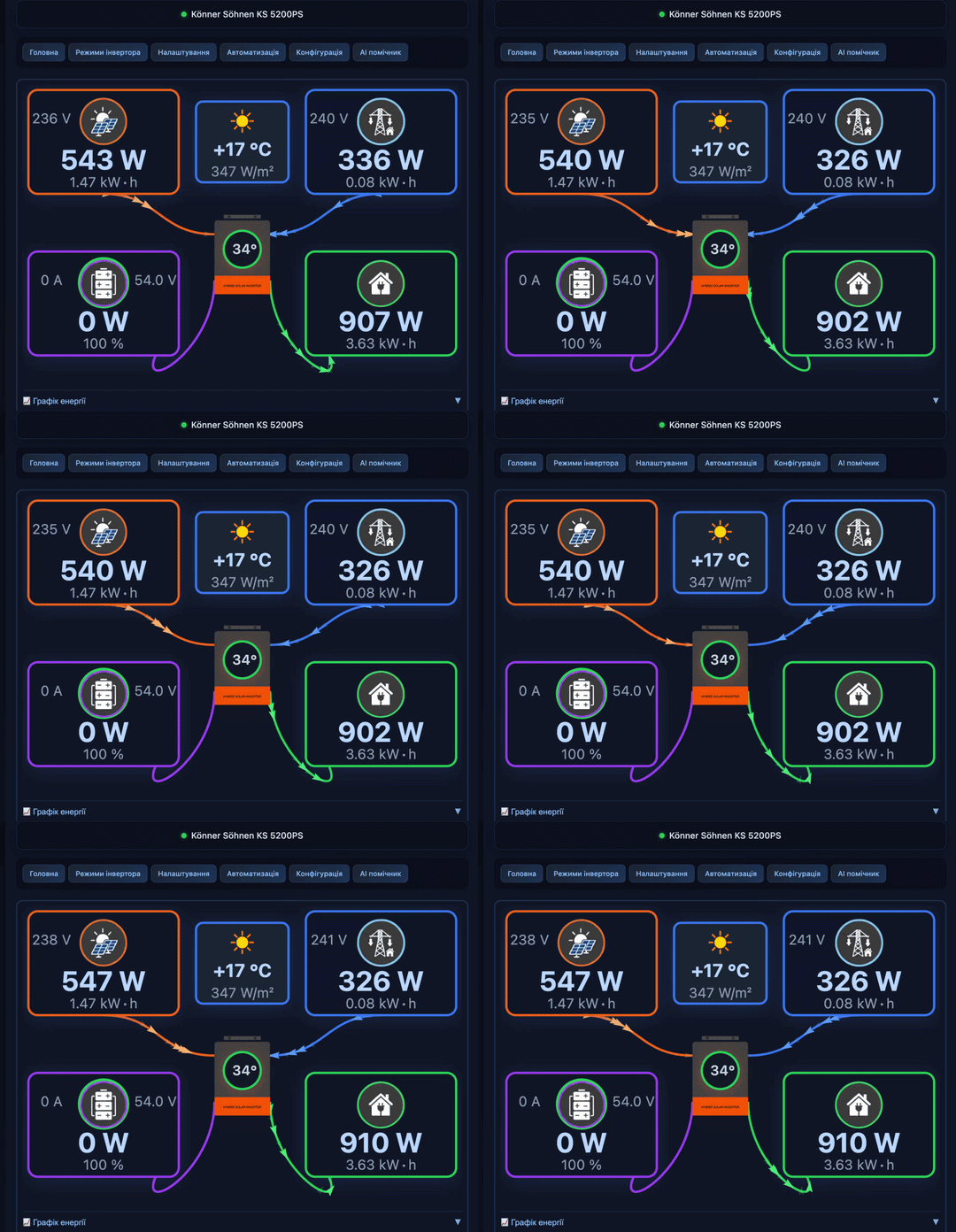
If you are not familiar with the format - be careful. Commas and quotes are very important.We save and everything works (Grid flows in the correct direction):




![[Personal experience] Replaced the speakers on macbook a2337 (speaker from Ali)](https://cdn.tseivo.com/uf686v8beaqlorcqcoybp2hxbgxp)